
In this article you will find information about:
- When can this feature be used?
- How does it work?
- Difference in amount
- Fixed Amount
- Percentage
- Restrictions
1. When can this feature be used?
- Background:
- SBQ reads basic amounts from the invoice’s totals i.e. amount before vat, vat amount and amount after vat.
- Sometimes there are additional costs or discounts that need to be booked specially.
- They go unnoticed if Smartbooqing doesn’t read them. Therefore, this feature is offered to define such additional charges or discounts that can be applied to invoices from certain business partners.
- When certain deductions or additions need to be made for invoices from certain business partners, this function is useful.
- Following can be set up using this function
- Discounts (as a lump sum or as %)
- Payment discounts (as a fixed amount or as %)
- Any fixed addition / deduction
- Differences in amounts (payment differences)
- Total amount of the items on the invoice does not correspond to the VAT including amount
- Calculation error in the invoice e.g. addition of amount excluding VAT and VAT amount is not equal to the amount including VAT
- At the end of the normal posting lines of the invoice; The system will add an additional booking line with this setting.
- Note: This feature is available for all business partners and at all processing settings
2. How does it work?
- Go to Contact List select the contact and click on ‘Discounts’. (image 1 below)
- The symbol is shown for activated discount setting in column ‘Settings applied’
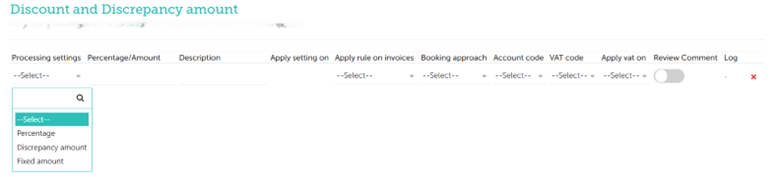
- Set up the following
3. Difference in amount
- See paragraph above.
- Set up a G/L account to which the payment difference can be posted.
4. Fixed amount
-
- Choose the amount (not %)
- Apply rule to invoices: Does it apply to all invoices/ only to invoices with positive amounts/ only invoices with negative amounts
- Booking approach:
- Reduce: The selected amount will be deducted from the total invoice amount (Incl. VAT)
- Increase: The selected amount will be added to the total invoice amount (Incl. VAT)
- Select the VAT code account and Apply VAT on Amount (Incl.VAT or Excl.VAT)
- On Review note: Choose this if these rules are to be displayed on the Review page
5. Percentage:
- Everything is the same as above except for an additional condition as described below:
- Choose the % (no amount)
- Apply Setting To – Based on the selection, the system will apply the selected amount / % to the “amount including tax” or the “amount excluding tax”.
- For example, 5% discount is applied:
| Apply on ‘incl. vat amount’
Excl. barrel 100 Keg 21 Incl. barrel 121 Discount 6.05 (5% on 121) |
Apply on ‘excl. barrel amount’
Excl. barrel 100 Keg 21 Incl. barrel 121 Discount 5.00 (5% on 100) |
Figure 1 (contact list where the institution is present)
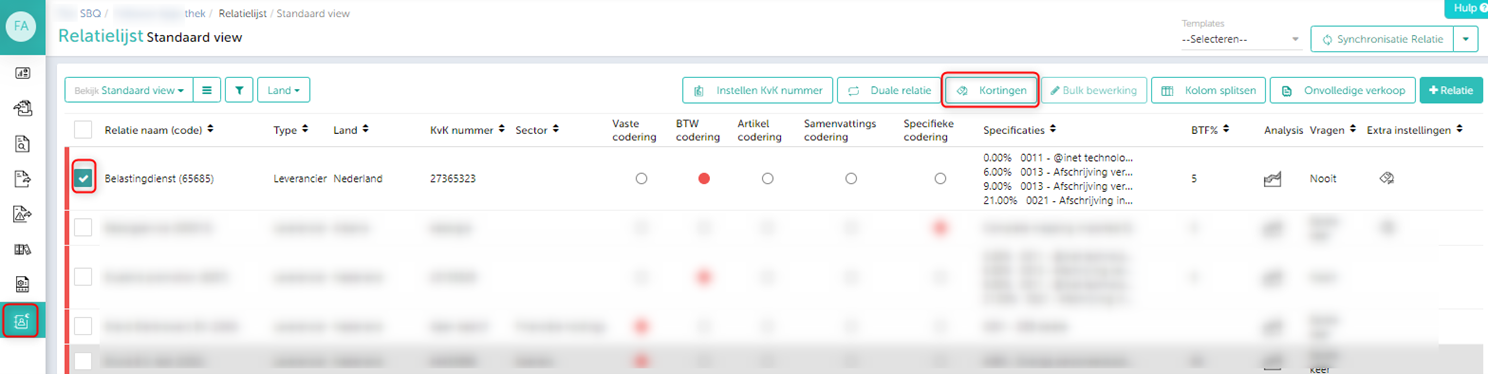
Figure 2 (parameters that can be set)
6. Restrictions
- Current discounts mentioned on the invoice are not included in the system. Only the calculated value in percentage as specified in the settings is applied. Only % can be entered in the ‘percentage’ section. No amounts.
- Only amounts can be entered under ‘fixed amount’.
- VAT is not applied to these three additional rules.
- To find the ‘difference in amount’, the system will check the total amount including VAT of the item lines. Not the amount excluding VAT, which can sometimes be the case.
- Discount settings will have higher priority than Rounding setting.