
What is mode?
A mode determines which features and settings are visible to users within an administration.
Each administration can be set to either Basic or Advanced mode.
Basic Mode
Designed for organizations that need a straightforward invoice processing experience.
The system automatically hides advanced functionality that isn’t typically required.
Example:
- Suitable for purchase invoice processing using Fixed and VAT Coding.
- More settings and features can be enabled or disabled based on business needs.
Advanced Mode
Designed for organizations that require more advanced processing capabilities.
Examples:
- Suitable for complex coding processing like Article, Specific, and Summary coding.
- Allows configuration of complex automation rules like document routing, Dimensions, Document splitting etc.
- More settings and features can be enabled or disabled based on business needs.
How to Configure Administration Mode
1] Go to Settings > Administration General Settings > Administration Mode.
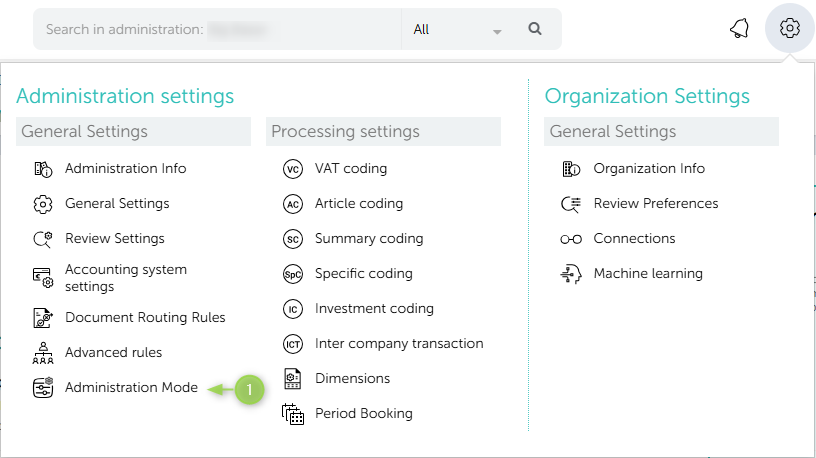
2] Select either Basic or Advanced based on your organization’s requirements. &
3] Save your changes.
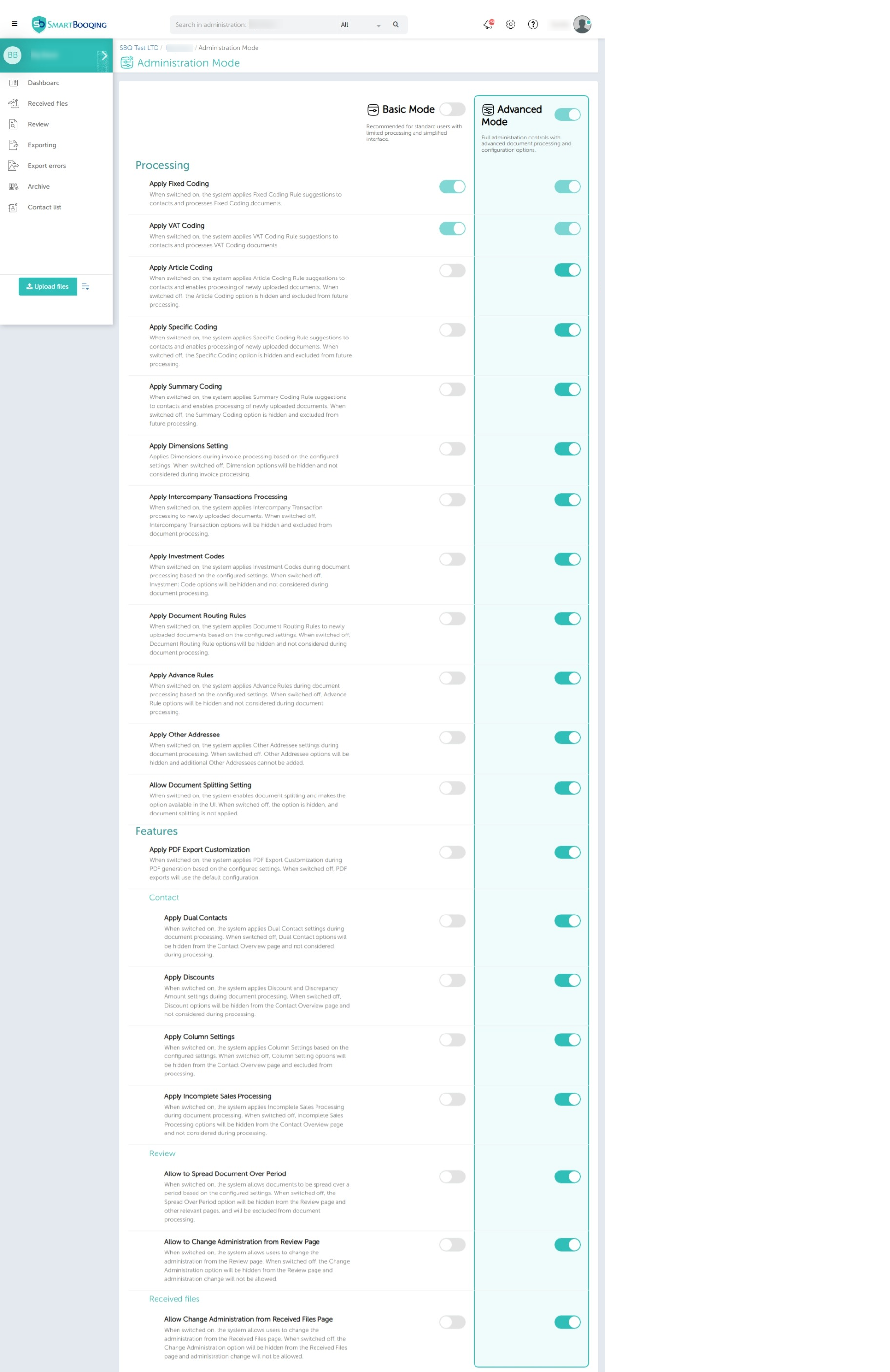
Basic vs. Advanced Mode – Features & Default Settings
| Features | Description | Basic Mode | Advanced Mode |
| Apply Fixed Coding | When switched on, the system applies Fixed Coding Rule suggestions to contacts and processes Fixed Coding documents. This is a mandatory setting and is not allowed to be switched off. | ON | ON |
| Apply VAT Coding | When switched on, the system applies VAT Coding Rule suggestions to contacts and processes VAT Coding documents. This is a mandatory setting and is not allowed to be switched off. |
ON | ON |
| Apply Article Coding | When switched on, the system applies Article Coding Rule suggestions to contacts and enables processing of newly uploaded documents. When switched off, the Article Coding option is hidden and excluded from future processing. | OFF | ON |
| Apply Specific Coding | When switched on, the system applies Specific Coding Rule suggestions to contacts and enables processing of newly uploaded documents. When switched off, the Specific Coding option is hidden and excluded from future processing. | OFF | ON |
| Apply Summary Coding | When switched on, the system applies Summary Coding Rule suggestions to contacts and enables processing of newly uploaded documents. When switched off, the Summary Coding option is hidden and excluded from future processing. | OFF | ON |
| Apply Dimensions Setting | Applies Dimensions during invoice processing based on the configured settings. When switched off, Dimension options will be hidden and not considered during invoice processing. | OFF | ON |
| Apply Intercompany Transactions Processing | When switched on, the system applies Intercompany Transaction processing setting rules to newly uploaded documents. When switched off, Intercompany Transaction options will be hidden and excluded from document processing. | OFF | ON |
| Apply Investment Codes | When switched on, the system applies Investment Codes during document processing based on the configured settings. When switched off, Investment Code options will be hidden and not considered during document processing. | OFF | ON |
| Apply Document Routing Rules | When switched on, the system applies Document Routing Rules to newly uploaded documents based on the configured settings. When switched off, Document Routing Rule options will be hidden and not considered during document processing. | OFF | ON |
| Apply Advance Rules | When switched on, the system applies Advance Rules during document processing based on the configured settings. When switched off, Advance Rule options will be hidden and not considered during document processing. | OFF | ON |
| Apply Other Addressee | When switched on, the system applies Other Addressee settings during document processing. When switched off, Other Addressee options will be hidden and additional Other Addressees cannot be added. | OFF | ON |
| Allow Document Splitting Setting | When switched on, the system enables document splitting and makes the option available in the UI. When switched off, the option is hidden, and document splitting is not applied. | OFF | ON |
| Apply PDF Export Customization | When switched on, the system applies PDF Export Customization during PDF generation based on the configured settings. When switched off, PDF exports will use the default configuration. | OFF | ON |
| Apply Dual Contacts | When switched on, the system applies Dual Contact settings during document processing. When switched off, Dual Contact options will be hidden from the Contact Overview page and not considered during processing. | OFF | ON |
| Apply Discounts | When switched on, the system applies Discount and Discrepancy Amount settings during document processing. When switched off, Discount options will be hidden from the Contact Overview page and not considered during processing. | OFF | ON |
| Apply Column Settings | When switched on, the system applies Column Settings based on the configured settings. When switched off, Column Setting options will be hidden from the Contact Overview page and excluded from processing. | OFF | ON |
| Apply Incomplete Sales Processing | When switched on, the system applies Incomplete Sales Processing during document processing. When switched off, Incomplete Sales Processing options will be hidden from the Contact Overview page and not considered during processing. | OFF | ON |
| Allow to Spread Document Over Period | When switched on, the system allows documents to be spread over a period based on the configured settings. When switched off, the Spread Over Period option will be hidden from the Review page and other relevant pages and will be excluded from document processing. | OFF | ON |
| Allow to Change Administration from Review Page | When switched on, the system allows users to change the administration from the Review page. When switched off, the Change Administration option will be hidden from the Review page, and administration change will not be allowed. | OFF | ON |
| Allow Change Administration from Received Files Page | When switched on, the system allows users to change the administration from the Received Files page. When switched off, the Change Administration option will be hidden from the Received Files page, and administration change will not be allowed. | OFF | ON |
Lock Template Settings for Follower Admin
When Template Follower Admin then template-related settings will be enabled by default and cannot be disabled by the user.
Enabled Options
The following options will always remain ON for Template Follower Admin :
- Fixed Coding
- VAT Coding
- Article Coding
- Specific Coding
- Summary Coding
- Investment Coding
Template Follower Admin Configuration Enforcement
For users operating in Template Follower Admin mode:
- The above template-related options cannot be switched OFF.
- Mode switching is restricted: Users cannot switch between Basic and Advanced modes.
This ensures that Template Follower Admin always follows the predefined template configuration
Important Notes
- Users can switch individual features on or off based on their business requirements. When a feature is turned On, the related UI elements are displayed, and the feature is available for use during document processing. When turned Off, the related UI elements are hidden, and that feature is not applied during document processing.
- Existing data is not removed when a feature is turned on or off.
- Previously processed documents remain unchanged. The updated setting will apply only to documents uploaded after the feature is turned on or off.